

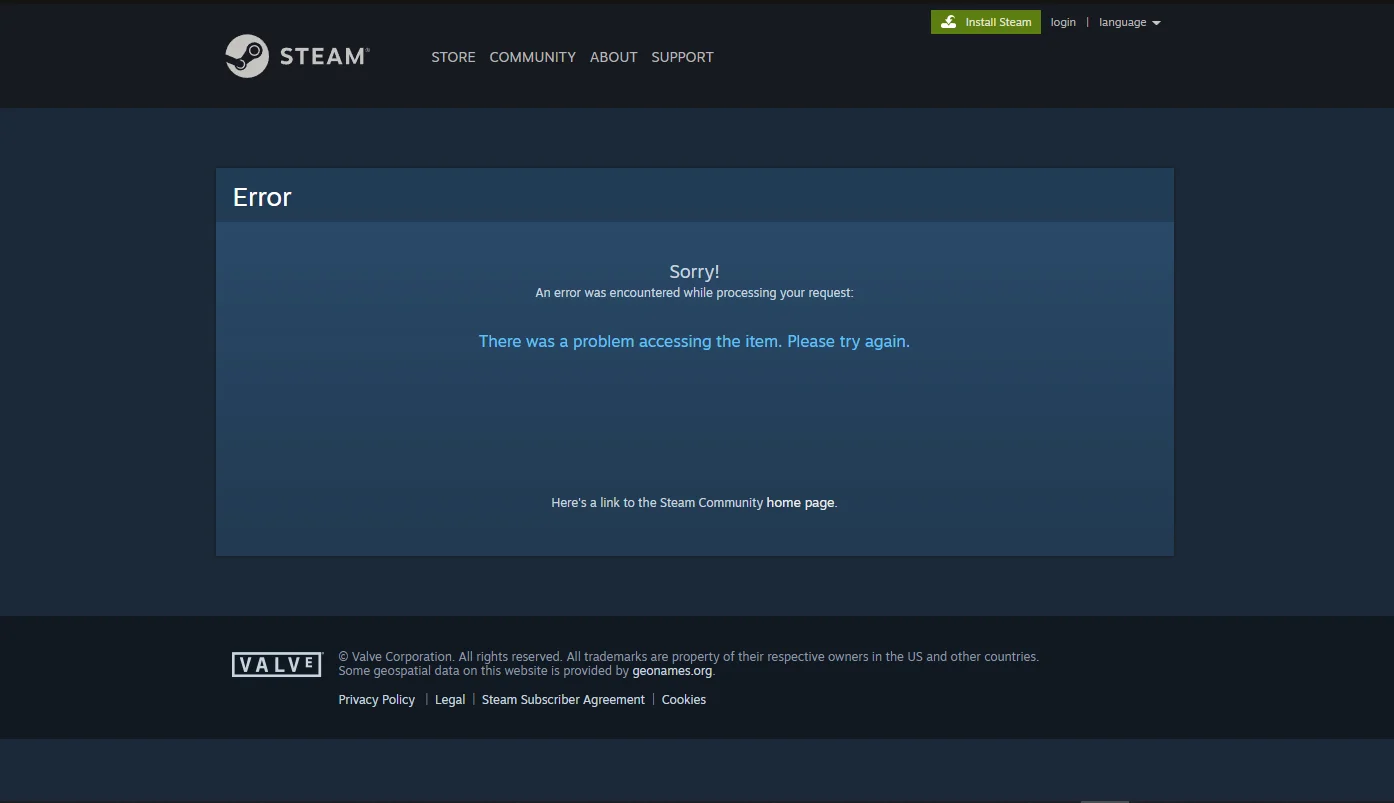
Steam is one of the most reliable gaming platforms in the world, but like any complex software, it can sometimes throw frustrating errors. One such issue that many users search for is “Steam encountered an error 0x3008”. This error can prevent you from logging in, updating games, or even launching the Steam client properly.
What Is Steam Error 0x3008?
Steam Encountered an Error 0x3008: Steam error 0x3008 is a connection and authentication-related error that usually appears when the Steam client fails to communicate properly with Steam’s servers. In most cases, the error shows up during:
-
Steam login attempts
-
Client startup
-
Updates or patch downloads
-
Network authentication checks
The error message may appear as:
“Steam encountered an error (0x3008)”
At its core, this error means Steam cannot establish or maintain a secure connection with its backend services.
This issue is not always caused by Steam itself. Very often, it is related to:
-
Network configuration problems
-
Firewall or antivirus interference
-
Corrupted Steam files
-
DNS or IP-related issues
Understanding the root cause is the key to fixing it permanently.
Common Causes of Steam Error 0x3008
To fix Steam error 0x3008, you must first understand why it happens. Based on user reports and technical analysis, the most common causes include:
-
Unstable or restricted internet connection
-
Firewall or antivirus blocking Steam
-
Incorrect DNS settings
-
Corrupted Steam cache or configuration files
-
VPN or proxy interference
-
Steam server outages or maintenance
In many cases, the error occurs after a system update, network change, or security software update, which silently blocks Steam’s access.
The good news?
Most of these causes are easy to fix with basic troubleshooting.
How to Fix Steam Error 0x3008 (Step-by-Step Solutions)
Here are the most effective fixes that resolve Steam error 0x3008 for the majority of users.
1. Restart Steam and Your Computer
It sounds simple, but restarting:
-
Clears temporary network conflicts
-
Resets background services
-
Fixes minor client glitches
Always start here.
2. Check Steam Server Status
Before changing anything on your system:
-
Visit Steam’s official server status page
-
Check online outage trackers
If Steam servers are down, the error is not on your end, and waiting is the only solution.
3. Disable VPNs and Proxies
VPNs and proxies are one of the most common causes of error 0x3008.
-
Turn off any active VPN
-
Disable proxy settings in your network configuration
-
Restart Steam and try again
Steam may block or fail to authenticate through masked IPs.
4. Allow Steam Through Firewall and Antivirus
Security software often blocks Steam by mistake.
Make sure the following are allowed:
-
steam.exe -
steamwebhelper.exe -
steamservice.exe
If needed:
-
Temporarily disable antivirus
-
Test Steam
-
Re-enable protection after confirming the fix
5. Change DNS Settings
DNS issues can prevent Steam from resolving server addresses.
Use Google DNS or Cloudflare DNS:
-
Preferred DNS: 8.8.8.8
-
Alternate DNS: 8.8.4.4
Or:
-
1.1.1.1
-
1.0.0.1
Restart your network after changing DNS.
Advanced Fixes for Persistent Error 0x3008
If the basic fixes don’t work, try these advanced solutions.
Clear Steam Download Cache
-
Open Steam (if possible)
-
Go to Settings → Downloads
-
Click Clear Download Cache
-
Restart Steam
This fixes corrupted cache files that often trigger connection errors.
Run Steam as Administrator
Running Steam with admin privileges ensures:
-
Proper network access
-
Correct permissions
Right-click steam.exe → Run as administrator.
Reset Network Configuration
Open Command Prompt as administrator and run:
-
ipconfig /flushdns -
netsh winsock reset
Restart your PC afterward.
This clears network conflicts that may block Steam connections.
Can Steam Error 0x3008 Be Caused by Your ISP?
Yes, in some cases, your internet service provider (ISP) may be responsible.
Possible ISP-related issues include:
-
Regional routing problems
-
Temporary restrictions
-
DNS-level blocking
If:
-
Steam works on mobile hotspot but not your main connection
Then your ISP is likely the issue.
Contact your ISP or switch DNS servers as a workaround.
How to Prevent Steam Error 0x3008 in the Future
Prevention is better than fixing errors repeatedly. To avoid Steam error 0x3008 in the future:
-
Keep Steam updated
-
Avoid unstable VPN services
-
Use trusted antivirus software
-
Regularly clear Steam cache
-
Maintain stable DNS settings
-
Avoid modifying network settings unnecessarily
These steps greatly reduce the chances of connection-related Steam errors.
Conclusion: Steam Error 0x3008 Explained and Solved
Steam encountered an error 0x3008 is frustrating, but it is not a permanent or serious problem. In most cases, it’s caused by network conflicts, security software, or DNS issues, not by your account or games.
The key takeaways:
-
The error is fixable
-
It rarely requires reinstalling Steam
-
Most users resolve it in minutes with proper troubleshooting
By following the steps in this guide, you can restore Steam’s connection, log in successfully, and return to gaming without interruptions.
Frequently Asked Questions (FAQs)
1. Is Steam error 0x3008 a ban or account issue?
No. It is a connection error, not an account ban.
2. Can reinstalling Steam fix error 0x3008?
Sometimes, but it should be a last resort.
3. Does error 0x3008 affect game downloads?
Yes, it can prevent downloads and updates.
4. Will changing DNS really help?
Yes. DNS issues are a common cause of this error.
5. Is error 0x3008 permanent?
No. It is temporary and solvable in almost all cases.